> ## Documentation Index
> Fetch the complete documentation index at: https://docs.genlook.app/docs/llms.txt
> Use this file to discover all available pages before exploring further.
# Install on Shopify
> Install the Genlook virtual try-on app on your Shopify store and add the try-on button to your theme in a few minutes, with no code.
The Genlook widget has two parts in your Shopify theme:
1. The **Genlook Try-On** app embed. It loads Genlook and your store-level configuration on every page. The try-on button does not work without it.
2. The **Genlook Try-On Button** app block. It renders the actual button on your product pages, and it is where you style the button in the theme editor.
The Genlook app walks you through both steps during onboarding and detects automatically when each one is done. This page covers the same steps in detail, so you can follow along or fix a step that did not stick.
Using an older Shopify 1.0 (vintage) theme that does not support app blocks? Follow the [vintage theme guide](/docs/virtual-tryon/install/vintage-themes) instead.
## Install the widget in your theme
Install Genlook from the [Shopify App Store](https://apps.shopify.com/genlook-virtual-try-on?utm_source=docs\&utm_medium=website) and approve the requested permissions.
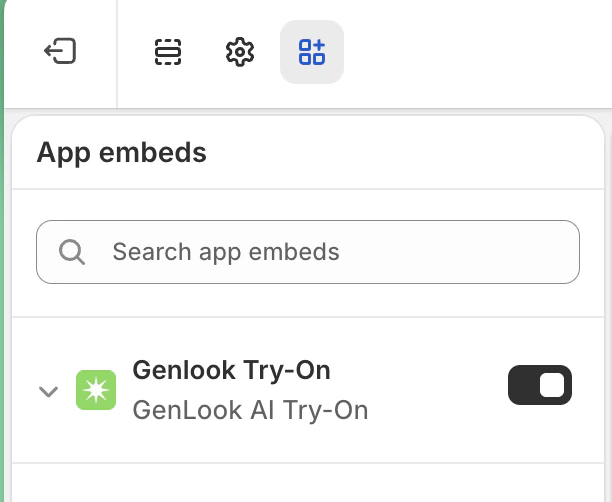
In your Shopify admin, go to **Online Store > Themes** and click **Customize** on your active theme. Open **App embeds** at the bottom of the left sidebar, find **Genlook Try-On**, and toggle it on.
 Still in the theme editor, use the dropdown at the top to open a **Products** template (for example, Default product). In the left sidebar, click **Add block** inside the product information section and select **Genlook Try-On Button**.
Make sure you are editing a product template. The block only renders on product pages.
Drag the block to where shoppers decide whether to buy. Right above or below the **Add to cart** button drives the highest engagement in our data.
Click **Save**. If your store uses several product templates, repeat for each template that should show the button.
If you add the block but forget the app embed, the button cannot work. In the theme editor Genlook shows a notice ("Enable the Genlook app embed...") in that case, and on your live store the dead button hides itself automatically.
## Launch checklist
1. In the Genlook app, open **Manage** and [choose which products offer try-on](/docs/virtual-tryon/app/product-visibility). Enabling all products is the recommended starting point.
2. Open an enabled product on your storefront and run a try-on yourself.
3. Pick a plan when prompted; see [plans and billing](/docs/virtual-tryon/app/billing).
## What's next
Style, color, icon, and copy for the button and the try-on widget.
Email collection, shopper limits, photo retention, and watermark.
See try-ons, attributed revenue, and conversion as soon as shoppers start using it.
Button not showing up? The three usual causes and their fixes.
Still in the theme editor, use the dropdown at the top to open a **Products** template (for example, Default product). In the left sidebar, click **Add block** inside the product information section and select **Genlook Try-On Button**.
Make sure you are editing a product template. The block only renders on product pages.
Drag the block to where shoppers decide whether to buy. Right above or below the **Add to cart** button drives the highest engagement in our data.
Click **Save**. If your store uses several product templates, repeat for each template that should show the button.
If you add the block but forget the app embed, the button cannot work. In the theme editor Genlook shows a notice ("Enable the Genlook app embed...") in that case, and on your live store the dead button hides itself automatically.
## Launch checklist
1. In the Genlook app, open **Manage** and [choose which products offer try-on](/docs/virtual-tryon/app/product-visibility). Enabling all products is the recommended starting point.
2. Open an enabled product on your storefront and run a try-on yourself.
3. Pick a plan when prompted; see [plans and billing](/docs/virtual-tryon/app/billing).
## What's next
Style, color, icon, and copy for the button and the try-on widget.
Email collection, shopper limits, photo retention, and watermark.
See try-ons, attributed revenue, and conversion as soon as shoppers start using it.
Button not showing up? The three usual causes and their fixes.