> ## Documentation Index
> Fetch the complete documentation index at: https://docs.genlook.app/docs/llms.txt
> Use this file to discover all available pages before exploring further.

# Install on Shopify 1.0 (Vintage) Themes

> Add the Genlook virtual try-on button to older Shopify themes that don't support app blocks, using a Custom Liquid snippet.

Older Shopify themes (pre Online Store 2.0, often called "vintage" or "1.0" themes) do not support app blocks, so the **Genlook Try-On Button** block will not appear in your theme editor. You can still install the widget: enable the app embed as usual, then place the button with a small Custom Liquid snippet.

<Steps>
  <Step title="Enable the Genlook Try-On app embed">
    1. In your Shopify admin, go to **Online Store > Themes** and click **Customize** on your active theme.
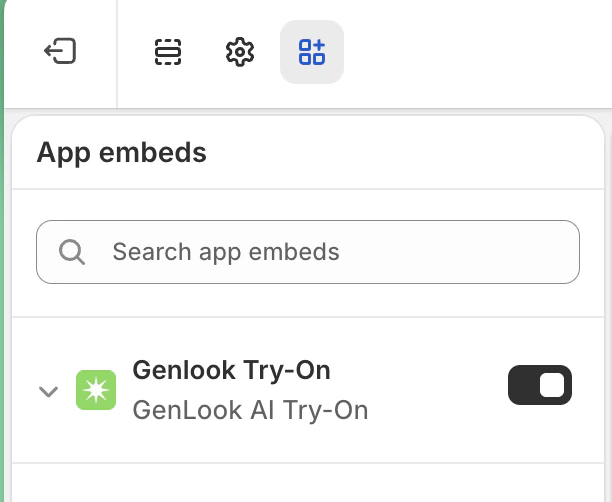
    2. Open **App embeds** at the bottom of the left sidebar.
    3. Find **Genlook Try-On** and toggle it on.
    4. Click **Save**.

    This loads the Genlook SDK on your store. Without it, the button below will not do anything.

    <Frame caption="Enable the Genlook Try-On app embed in the theme editor">
      <img src="https://mintcdn.com/genloook/HC2fJiQdbxud3PAW/images/genlook-global-embed.png?fit=max&auto=format&n=HC2fJiQdbxud3PAW&q=85&s=e8535c8358d6c43ee28e00e3ff719d4b" alt="Shopify theme editor showing the Genlook Try-On app embed toggle enabled" width="612" height="502" data-path="images/genlook-global-embed.png" />
    </Frame>
  </Step>

  <Step title="Add a Custom Liquid block to your product template">
    1. Still in the theme editor, select your **Products > Default product** template from the dropdown at the top.
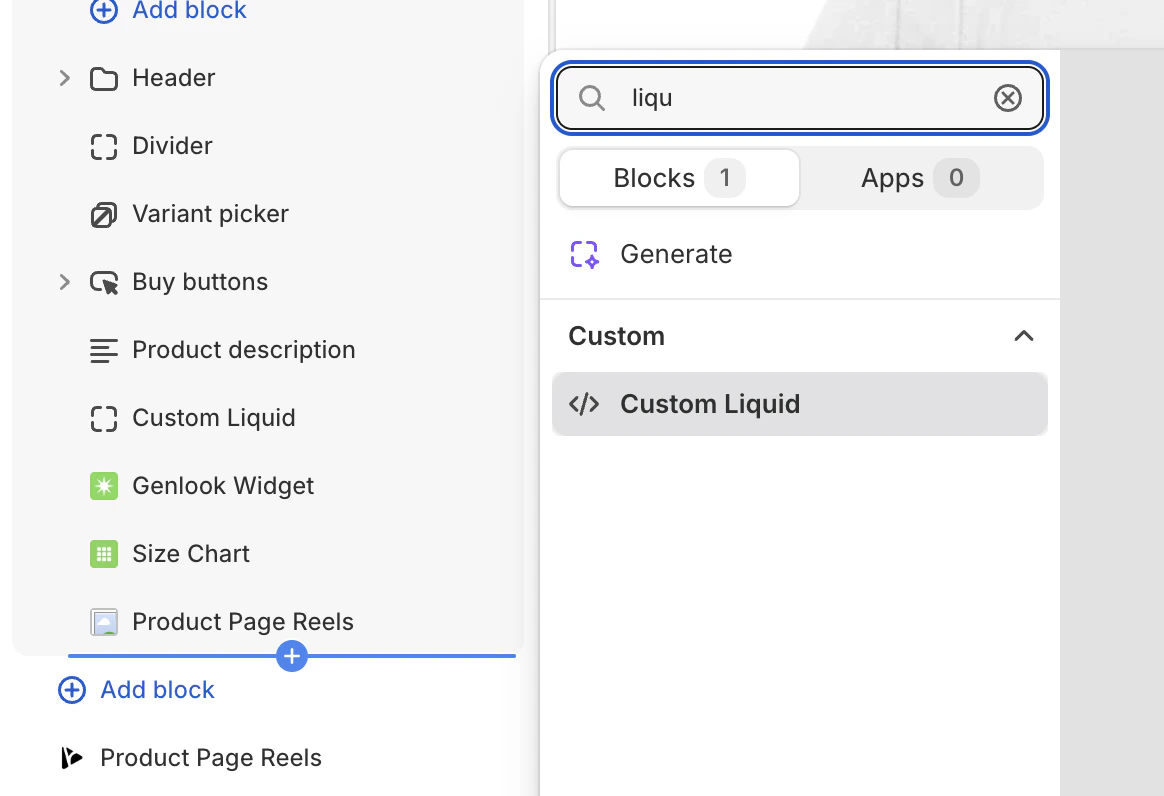
    2. Under the product information section, click **Add block** and choose **Custom Liquid**.
    3. Drag the block to where you want the button, ideally right below **Add to cart**.

    <Frame caption="Add a Custom Liquid block to your product page">
      <img src="https://mintcdn.com/genloook/wYQCuOmAhuLMx_Nj/images/custom-liquid-block.png?fit=max&auto=format&n=wYQCuOmAhuLMx_Nj&q=85&s=ae373b3da158225fdbff11d25cb6313b" alt="Shopify theme editor showing how to add a Custom Liquid block" width="1164" height="796" data-path="images/custom-liquid-block.png" />
    </Frame>
  </Step>

  <Step title="Paste the Genlook snippet">
    Click the Custom Liquid block and paste this snippet into its input box:

    ```liquid theme={null}
    {%- liquid
      assign ns = 'app--283488092161'
      assign show_widget = false
      assign collection_enabled = false
      assign product_genlook_enabled = null

      if product and product.id != null
        assign product_genlook_enabled = product.metafields[ns].genlook_enabled.value
      endif

      if product and product.collections
        for collection in product.collections
          if collection.metafields[ns].genlook_enabled.value
            assign collection_enabled = true
            break
          endif
        endfor
      endif

      if product_genlook_enabled or collection_enabled
        assign show_widget = true
      endif

      if request.design_mode
        assign show_widget = true
      endif
    -%}

    {% if show_widget %}
    <style>
      .genlook-basic-btn {
        display: flex;
        align-items: center;
        justify-content: center;
        gap: 8px;
        width: 100%;
        padding: 12px 18px;
        background-color: #0A1810;
        color: #ffffff;
        border: none;
        border-radius: 8px;
        font-size: 14px;
        font-weight: 600;
        cursor: pointer;
        transition: opacity 0.2s ease;
      }
      .genlook-basic-btn:hover {
        opacity: 0.9;
      }
    </style>

    <!-- The Try-On Button -->
    <button type="button" class="genlook-basic-btn" onclick="window.Genlook.cabin.open()">
      <svg width="16" height="16" fill="none" stroke="currentColor" viewBox="0 0 24 24" xmlns="http://www.w3.org/2000/svg">
        <path stroke-linecap="round" stroke-linejoin="round" stroke-width="2" d="M5 3v4M3 5h4M6 17v4m-2-2h4m5-16l2.286 6.857L21 12l-5.714 2.143L13 21l-2.286-6.857L5 12l5.714-2.143L13 3z"></path>
      </svg>
      Virtual Try-On
    </button>
    {% endif %}
    ```

    Click **Save**. Open a product that has try-on enabled in the Genlook app (see [enabling products](/docs/virtual-tryon/widget-setup#enable-products)) and the button should be live.
  </Step>
</Steps>

## Customize the colors

The snippet ships with a dark green button (`#0A1810`). To match your brand, edit the `<style>` block at the top of the snippet:

```css theme={null}
.genlook-basic-btn {
  background-color: #YOUR_COLOR; /* button background */
  color: #ffffff;                /* text color */
}
```

The colors inside the try-on modal itself come from the **Widget Design** tab in the Genlook app, the same as on modern themes. Developers can also override them per page; see the [configuration reference](/docs/virtual-tryon/custom-button#genlook-cabin-config-reference).

## Let AI style the button for you

Not comfortable with CSS? Paste this prompt into ChatGPT or Claude, fill in the brackets, and swap the answer into your snippet:

<CodeGroup>
  ```text AI Prompt theme={null}
  I am adding a custom HTML button to my Shopify store.
  Here is the code I am currently using:

  <style>
    .genlook-basic-btn {
      display: flex;
      align-items: center;
      justify-content: center;
      gap: 8px;
      width: 100%;
      padding: 12px 18px;
      background-color: #0A1810;
      color: #ffffff;
      border: none;
      border-radius: 8px;
      font-size: 14px;
      font-weight: 600;
      cursor: pointer;
      transition: opacity 0.2s ease;
    }
    .genlook-basic-btn:hover {
      opacity: 0.9;
    }
  </style>

  Please update the CSS inside the <style> tags to make the button look like this:

  - The background color should be [YOUR COLOR HERE, e.g. "bright red" or "#FF0000"]
  - The text color should be [YOUR COLOR HERE, e.g. "white"]
  - The corners should be [e.g. "fully rounded" or "sharp/square"]
  - Remove the icon next to the text [Optional: keep or delete this line]

  Only give me the updated <style> block back.
  ```
</CodeGroup>

## Need help?

If the button is not showing up or you would rather have us handle it, email [support@genlook.app](mailto:support@genlook.app). We are happy to log into your store and set it up for you, free of charge.