

1
Enable the Genlook Try-On app embed
- In your Shopify admin, go to Online Store > Themes and click Customize on your active theme.
- Open App embeds at the bottom of the left sidebar.
- Find Genlook Try-On and toggle it on.
- Click Save.
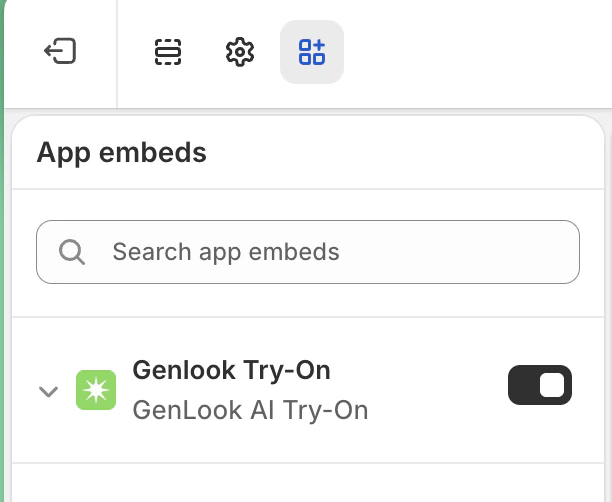
Enable the Genlook Try-On app embed in the theme editor
2
Add a Custom Liquid block to your product template
- Still in the theme editor, select your Products > Default product template from the dropdown at the top.
- Under the product information section, click Add block and choose Custom Liquid.
- Drag the block to where you want the button, ideally right below Add to cart.
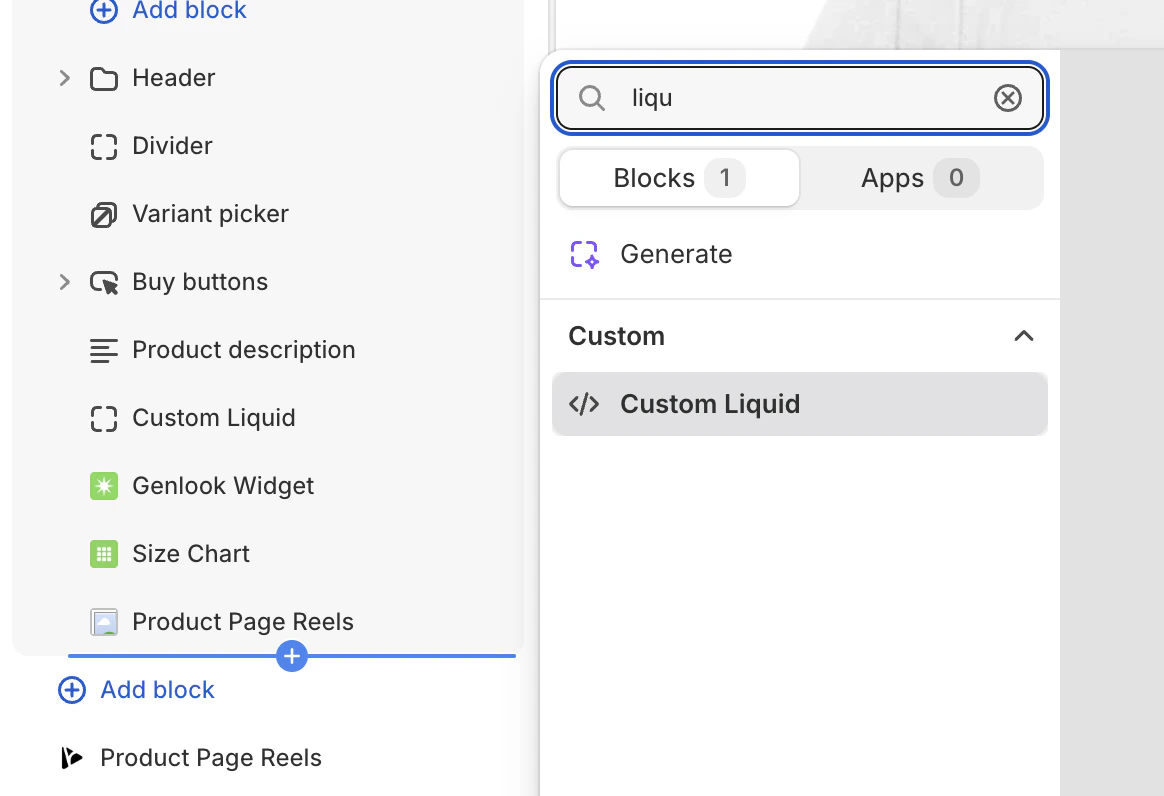
Add a Custom Liquid block to your product page
3
Paste the Genlook snippet
Click the Custom Liquid block and paste this snippet into its input box:Click Save. Open a product that has try-on enabled in the Genlook app (see enabling products) and the button should be live.
Customize the colors
The snippet ships with a dark green button (#0A1810). To match your brand, edit the <style> block at the top of the snippet: