

The foundation: your Shopify customer segment
When you install the app, Genlook automatically creates a new customer segment in Shopify called “Virtual Try-On Users by Genlook”. You’ll find it in your Shopify admin under Customers → Segments. It uses a simple query:genlook-user and is automatically added to this segment.
If a shopper tries on an item anonymously (they aren’t logged in and haven’t provided an email), they won’t be added to the segment. We wait until they identify themselves before we attach activity to a customer profile.
How Genlook updates customer profiles
Along with the generalgenlook-user tag, Genlook enriches each customer’s profile with their specific try-on history:
Product-specific tags
We add a specific tag for each variant a customer tries on, formatted as
genlook-try-{productId}-{variantId}. This is perfect for creating highly targeted segments (like “customers who tried on the leather jacket”).Tried-on products metafield
We store a
list.product_reference metafield ($app.genlook_tried_on_products) that keeps a running list of every product a customer has tried. These appear natively as clickable product links right in the Shopify admin.- Instantly whenever a logged-in shopper tries something on.
- Retroactively when an anonymous visitor identifies themselves (by logging in or submitting an email). As soon as we know who they are, we backfill their entire previous try-on history to their Shopify profile.
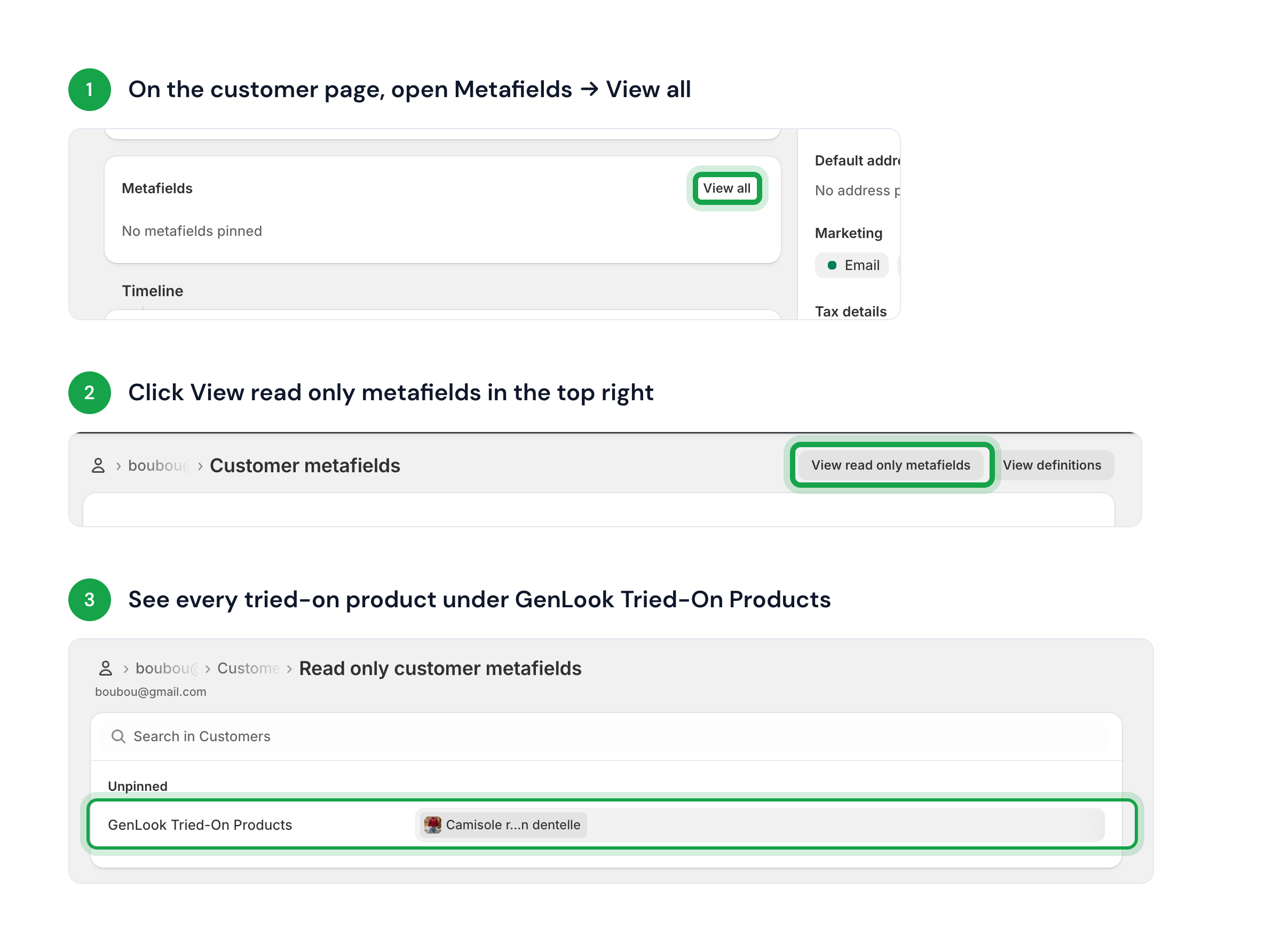
How the tried-on products metafield appears on a Shopify customer page
Connect your tools
Shopify Flow
Two ready-made try-on triggers, no setup.
Klaviyo
Try-on events on each profile, for flows and segments.
Webhooks
Signed HTTP events to your own endpoint.
Order attribution
When a shopper who used try-on places an order, Genlook tags the Shopify ordergenlook-order and records the shopper’s try-on count in the genlook_try_on_count order metafield.